Interval Camera

iPhone / iPad · iOS 17.6+

Set it down.It keeps shooting.

A camera that keeps taking photos on its own, every 1 to 60 seconds. Put it on a tripod and focus on the pose, not the shutter.

Scan with your iPhone

Interval Camera

When it helps

What it does

  1. 01

    Automatic shots every 1–60 seconds

    Set the interval with a slider and press the button. The app keeps shooting until you press it again.

  2. 02

    Filters while you shoot

    Swipe left or right on the camera view to change filters, and see the effect live in the preview.

  3. 03

    Keep the same framing

    Overlay your previous shot on the preview, so every frame of a fixed-point series lines up.

  4. 04

    Saved to your camera roll

    Every photo goes straight to your camera roll. You can also switch between front and rear cameras and tap to focus.

  5. 05

    50 free photos a day

    The free version takes up to 50 photos a day with 5 basic filters. Premium is a one-time purchase that removes both limits.

In detail

Leave it and it keeps shooting
01

Leave it and it keeps shooting

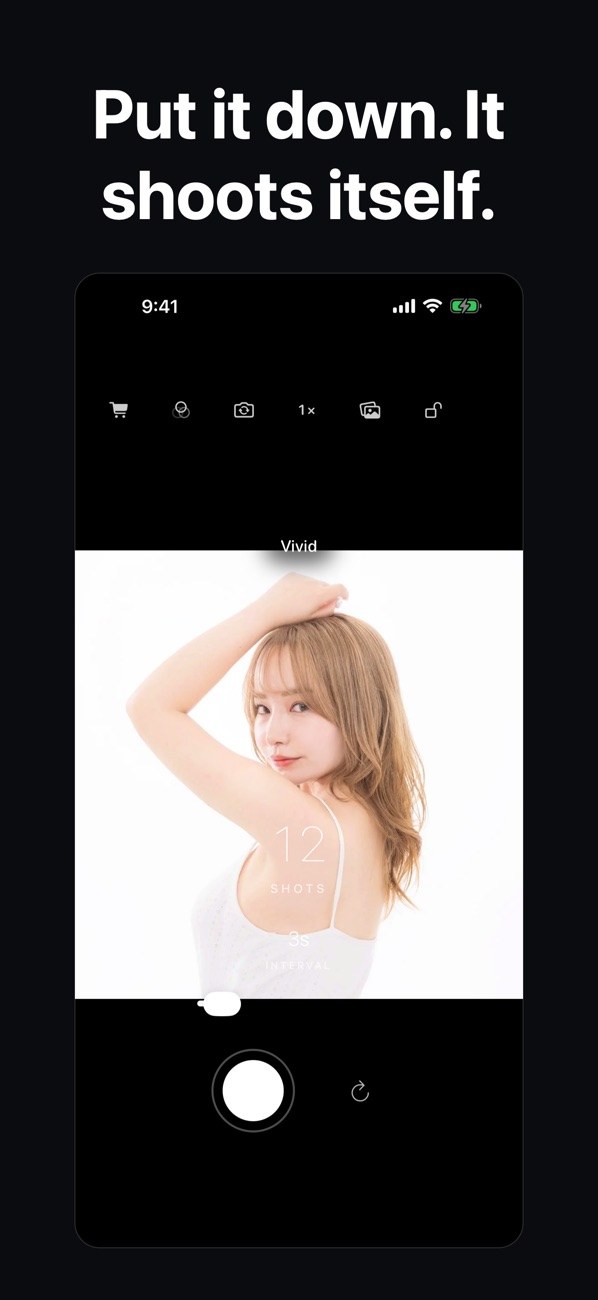
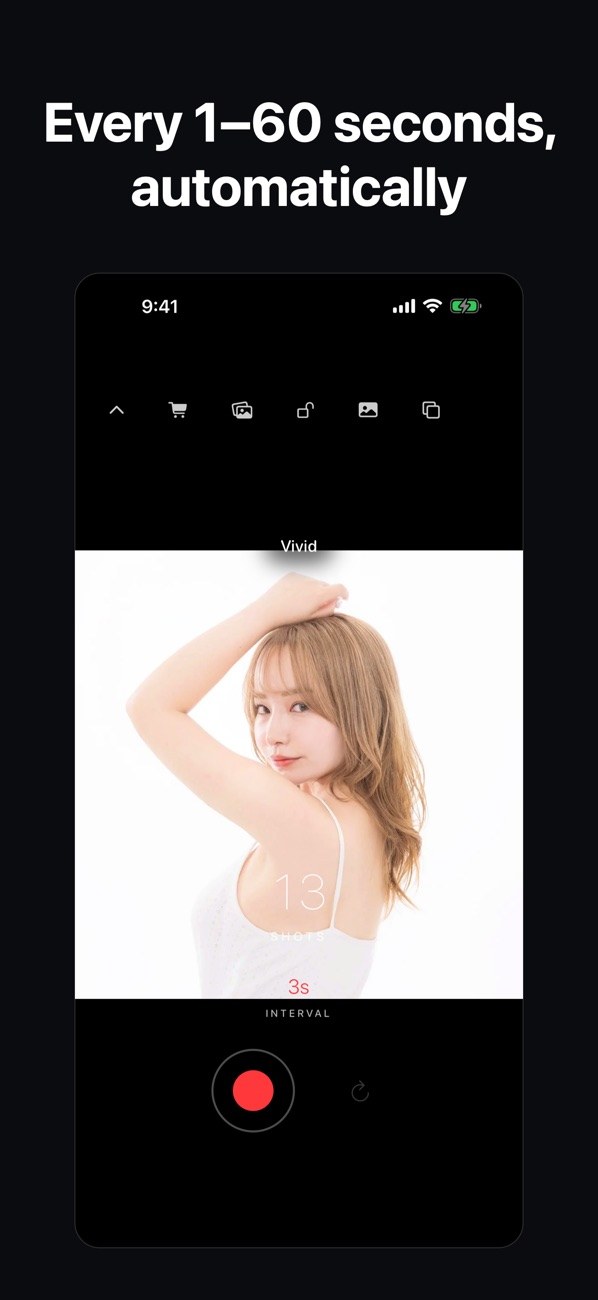
Press the shutter and the app keeps taking photos at the interval you set. The screen shows how many shots you have taken and the interval, so you can check the timing.

  • Interval of 1 to 60 seconds
  • Shows SHOTS count and INTERVAL
  • Press the button again to stop
Set the interval with a slider
02

Set the interval with a slider

Drag the slider to choose any interval from 1 to 60 seconds. Match it to how fast your subject moves, or how long you want to keep recording.

  • Adjustable from 1 to 60 seconds
  • Countdown display
  • From model shoots to fixed-point observation
Swap filters while you shoot
03

Swap filters while you shoot

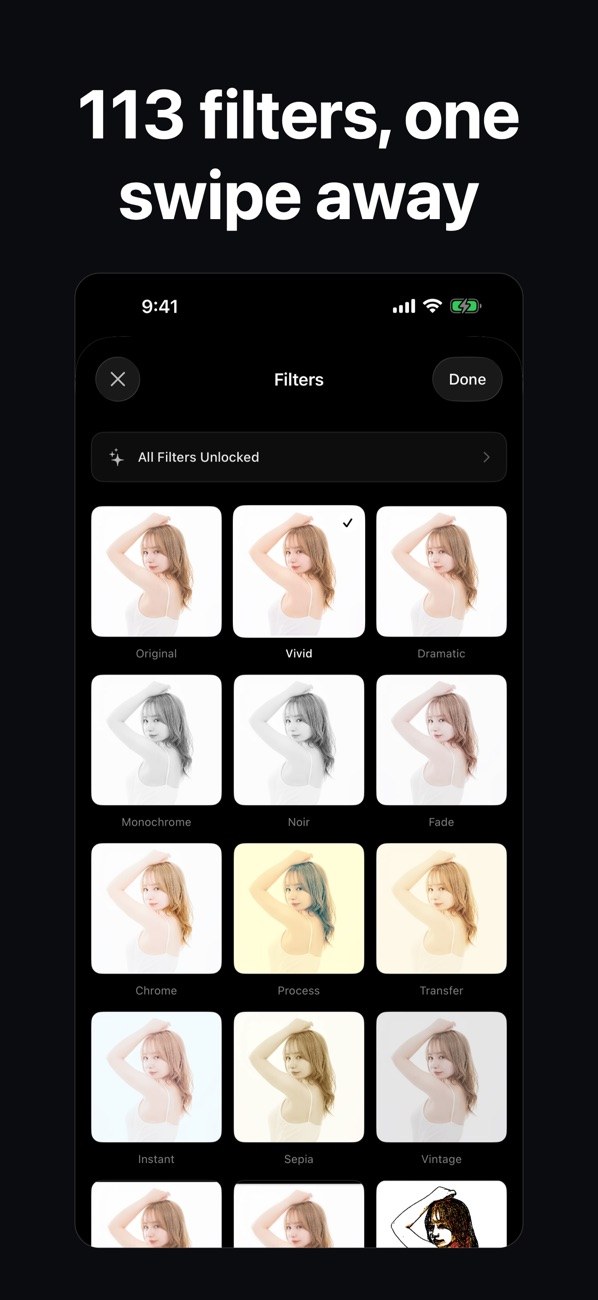
Swipe left or right on the camera view to change filters. You can also open the list and compare each look by its thumbnail.

  • Swipe left or right
  • Compare looks in the list
  • The first five filters are free
Line up the next frame with the last
04

Line up the next frame with the last

An icon on the camera screen overlays your previous shot on the preview. It helps when you want to keep the same framing from one frame to the next.

  • Toggle the overlay with its icon
  • Switch between front and rear cameras
  • Tap to focus
Lift the limits with one purchase
05

Lift the limits with one purchase

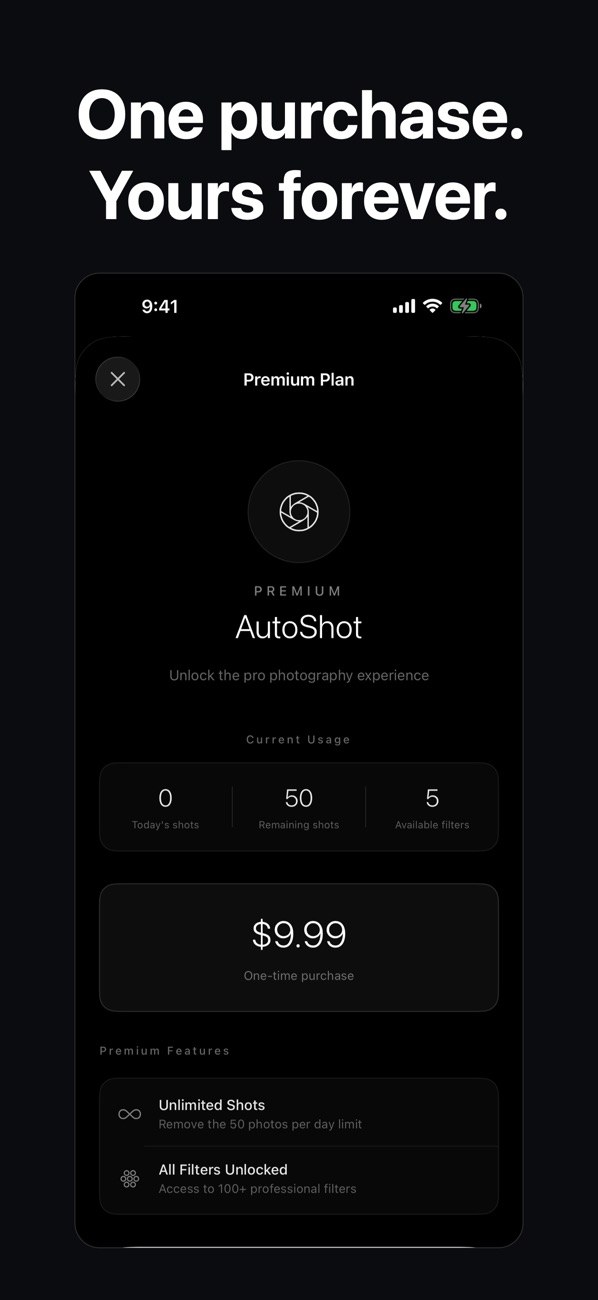
The free version allows up to 50 photos a day. The Premium screen shows today's shots, shots remaining and filters available. It is a one-time purchase.

  • Unlimited photos
  • Every filter unlocked
  • Pay once and keep it, with no further charge

How it works

  1. 1
    Set the interval

    Set the interval

    Drag the slider to choose the shooting interval, from 1 to 60 seconds.

  2. 2
    Pick a filter

    Pick a filter

    Swipe left or right on the camera view to change filters. You can also choose from the list.

  3. 3
    Start shooting

    Start shooting

    Tap the button and the app begins taking photos at your interval. Tap again to stop.

Screens

Ready to shoot, 3-second interval
Shooting, with the shot count
The filter list
The filter list
Premium, a one-time purchase

FAQ

What interval can I set?

Anything from 1 to 60 seconds.

Where are my photos saved?

Photos are saved to your camera roll (photo library) automatically.

What can I do for free?

Free use includes up to 50 photos a day, 5 basic filters (Original, Clear Tone, Portrait Film, Milk Tea, Skin Glow), 1 to 60 second interval settings, front and rear camera switching, and focus adjustment.

What does Premium add? Is it a subscription?

Premium removes the daily limit on photos and unlocks every filter. It is a one-time purchase: pay once and use it with no additional fees.

How many filters are there?

There are 524. You can preview each effect live while you shoot. Five basic filters are free.

Can I shoot with the front camera?

Yes. You can switch between the front and rear cameras.

Which iOS versions are supported?

iPhone and iPad running iOS 17.6 or later.

Are my photos sent anywhere?

The app can send anonymous crash reports and usage data, but your photos are never sent. See the privacy policy for details.

Set your phone down and let it shoot.

Download on the App Store
Interval CameraGet